
3:15 · For sellers
Set up your catalog
Before your first order ships, connect your stores, pull in your listings and map each one to the single products your warehouse keeps on the shelf. Orders can only reserve stock for listings that are mapped.
The idea
Listings come from your marketplaces. Stock sits on single products.
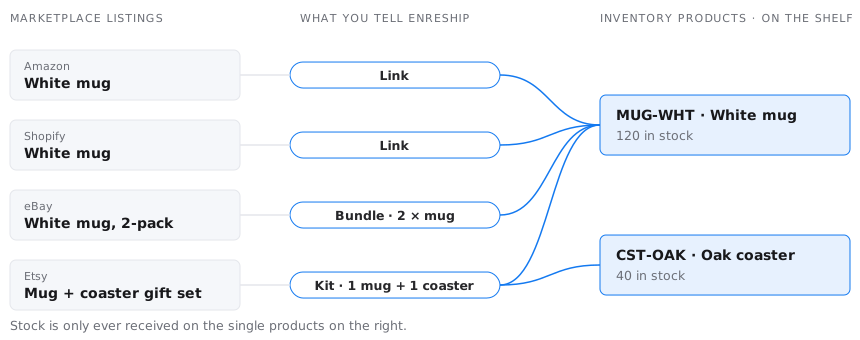
Every listing you pull from a marketplace becomes its own product in Enreship, one per listing per store. The same white mug sold on Amazon, Shopify and eBay arrives as three separate products. Enreship never guesses that they are the same item, not even when the SKU or ASIN matches.
Your warehouse, on the other hand, has one white mug on the shelf. That single item is your inventory product. Your job is to tell Enreship, for every listing, which inventory product it ships and how many. You do that with an inventory link or a bundle.
1 · Connect your store
Once per store.
- You
Add the store
Go to Stores, click Add, then Connect Store and pick Amazon, eBay, Etsy or Shopify. Amazon asks for the marketplace country first, then sends you to Amazon to approve access. Etsy and eBay send you straight to their approval page. Shopify is installed from the Shopify App Store (Open Shopify App Store).
- You
Choose the warehouse
When you come back, Select a Depot asks which warehouse this store ships from. Pick your warehouse and Save. You can change it later in the store's settings.
- You
Faire, Walmart and WooCommerce
These are added with Create Store: give the store a name, choose the marketplace and the depot. Walmart and WooCommerce have no sync: their orders are created by hand with Create Order, and their products by hand too.
2 · Pull in your listings
Do this before the first orders come in.
- You
Sync listings
On the store's card click Sync Listings. Large Amazon and eBay catalogs are pulled in the background; the card shows Last listing sync when it is done. Run it again whenever you add listings on the marketplace.
- Automatic
Each listing becomes a product
Enreship creates one product per listing, with a system SKU, and keeps your marketplace SKU on the listing. These products show Never stocked until you map them.
- Automatic
Orders can create products too
If an order arrives for a listing Enreship has not seen yet, the order sync creates the product for it. That is why mapping matters even after setup: new listings keep arriving.
3 · Decide for each listing
One question: what does one sale of this listing take off the shelf?
| The listing sells… | Do this | Example |
|---|---|---|
| One unit of an item you stock | Link it to that item's inventory product | Amazon and Shopify "White mug" → MUG-WHT |
| Several units of the same item | Make it a bundle of one product with a quantity | eBay "White mug, 2-pack" → 2 × MUG-WHT |
| A set of different items | Make it a kit of several products | Etsy gift set → 1 × MUG-WHT + 1 × CST-OAK |
| The item itself, and you stock it under this product | Nothing: this product is the inventory product | The product you send stock to |
- You
One or the other, never both
A product is either linked or a bundle. A bundle's components and a link's target must be single products: never another bundle, never a product that is itself linked.
4 · Create the single products you are missing
If you only sell packs or sets, the single item does not exist yet.
- You
Why you need it
Your warehouse stores and counts single units. If you only sell a mug as a 2-pack, no listing is the single mug, so create it yourself. It is the product you will send stock to.
- You
Create it by hand
Go to Products and click Create Product. The Primary Identifier is already SKU: type your own SKU in Value, pick the product type and the depot, and enter the Title, which is required. You can also pick a Supplier. Add the weight and dimensions afterwards on the product page. Create Product saves it.
- You
Or create it from the pack listing
Open the pack's listing product and click Split into components. Add one New product row with your SKU, the title and the unit weight, and set Qty per set to 2 for a 2-pack. Create components creates the single product and turns the pack into a bundle of it in one step, so you can skip Create Product.
- You
Or use one of your listing products
If one listing sells exactly the single item, that listing product can be the inventory product. Send stock to it and link the other stores' listings to it.
5 · Link single listings
Same item, sold in several places.
- You
Link from the product
Open the listing product. In Inventory link click Link inventory product, search for the single product (by title, SKU, ASIN, UPC or listing SKU) and click Link product. In inventory only is ticked so you see products that already have stock; untick it for a product you have just created.
- You
Check the result
The card now shows Ships as with the inventory product, and the listing's badge reads Linked. Remove inventory link undoes it.
- Automatic
Open orders follow
If orders for this listing are already waiting, they are checked again right away and reserve stock from the linked product.
6 · Set up packs and kits
One sale takes several units, or several products.
- You
A pack of the same item
Open the pack's listing product. In Bundle product click Use existing products. In Set up bundle choose the single product, set Qty per unit (2 for a 2-pack), leave Stock on Taken from the components (virtual) and click Save components. The card now shows One unit contains 2 × the single product. The page badge reads Bundle - 2-pack, and the product list shows Bundle ×2.
- You
A kit of products you already have
Same dialog: use Add component for each product in the set and give each its quantity. The page badge reads Bundle - kit of n; the product list shows Kit · set of n products.
- You
A kit whose items do not exist yet
Click Split into components. For each item, choose New product and give it a SKU, a title and its own unit weight, or choose Existing product. Create components creates the single products and turns the listing into a kit in one step. Do it before the listing has stock, purchases or orders holding stock.
- You
Packs stored ready-made
If your warehouse keeps the packs already assembled, choose Kept as assembled packs (prepacked). Then stock is received on the pack itself, and this is the one case where a bundle holds stock. Its badges read Bundle - prepacked … and, in the list, Prepacked ….
7 · Send stock to the single products
Never to a virtual bundle.
- You
Create the purchase
In Purchases, Create purchase only offers products that can hold stock. Searching for a listing finds the inventory product it is linked to. Virtual bundles cannot be purchased or restocked; Enreship asks you to restock the components instead.
- Warehouse
Your warehouse receives it
The warehouse receives the units onto the single products' bins.
- Automatic
Every listing sells from that stock
From now on, an order from any store reserves the right single products: one mug for a single listing, two for the 2-pack, a mug and a coaster for the gift set.
Every new listing, every time
Mapping is not a one-time setup.
- Automatic
New listings arrive as new products
Every listing you add to a store later arrives in Enreship as a new product: after you run Sync Listings, or with its first order if an order comes in before the sync.
- You
Map it right away
Link the new listing to its inventory product, or set it up as a bundle, as soon as it appears. Until it is mapped, Enreship cannot reserve stock for its orders.
8 · Check and keep it clean
New listings keep arriving.
- You
Scan the badges
In Listings and Products, every listing should show a stock badge, Linked, or a Bundle, Kit or Prepacked badge. A listing product that still says Never stocked with neither is not mapped.
- You
Fix it from an order
An order line that shows Wrong inventory product? belongs to an unmapped listing. Link it from there; the link applies to every order of that listing, past and future.